Prerequisites
- A LINE account that can access LINE Developers.
- A Google account with access to Sheets, Drive, and Apps Script.
- At least one Gemini API key. Threads and Cloudinary keys are needed if posting workflows are enabled.
- A clean naming plan for folders and worksheets so maintenance stays manageable.
Step 1: Build Google Sheet as the memory layer
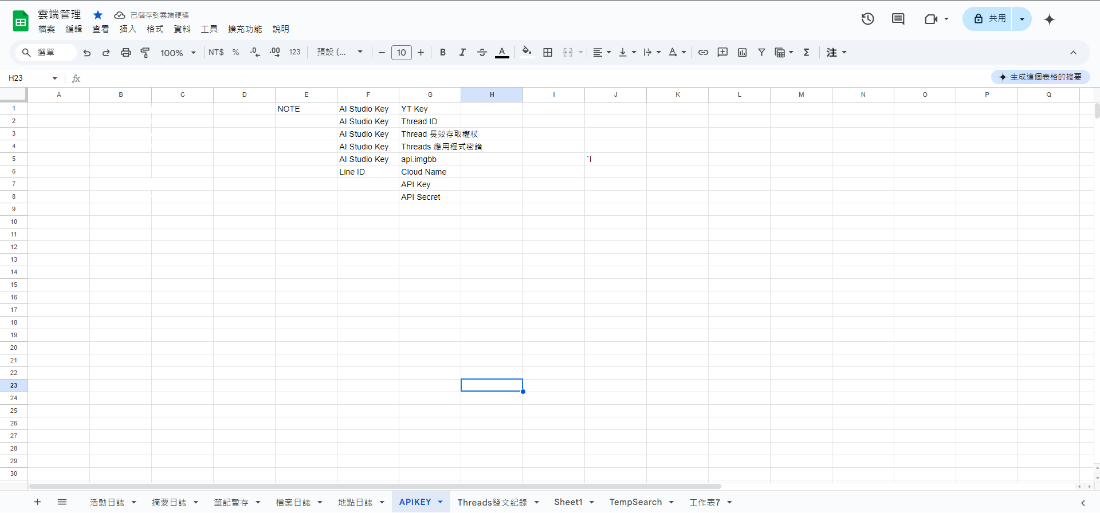
The teaching materials treat Google Sheet as a durable memory layer. At minimum, prepare tabs for APIKEY, logs, notes, uploaded files, and temporary workflow data.
Step 2: Create the Google Drive storage folder
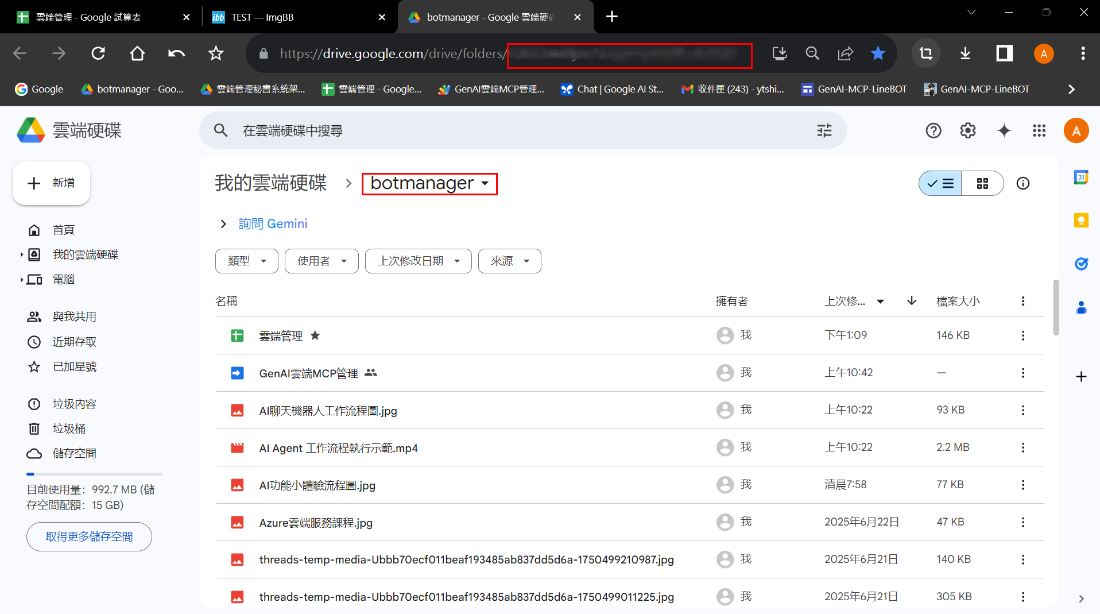
Google Drive stores uploaded images, videos, and documents from LINE, as well as generated Docs, Slides, and report files. Keep the folder ID ready for configuration.
Step 3: Create the LINE Channel
In LINE Developers Console, create a Messaging API Channel and record the Channel secret and Channel access token. These values enable event intake and message delivery.
Step 4: Deploy Apps Script as a web app
Open Apps Script from the spreadsheet, paste the core code, bind the spreadsheet ID, folder ID, key locations, and model settings, then deploy the project as a web app.
Step 5: Set and verify the Webhook
Paste the deployed web app URL into the LINE Webhook URL field and run Verify. If verification succeeds, LINE can deliver events to Apps Script. Disable built-in auto replies so your bot keeps control.
Minimum success criteria
- Webhook verification succeeds.
- An event reaches Apps Script when a message is sent.
- A log or test record appears in the spreadsheet.